






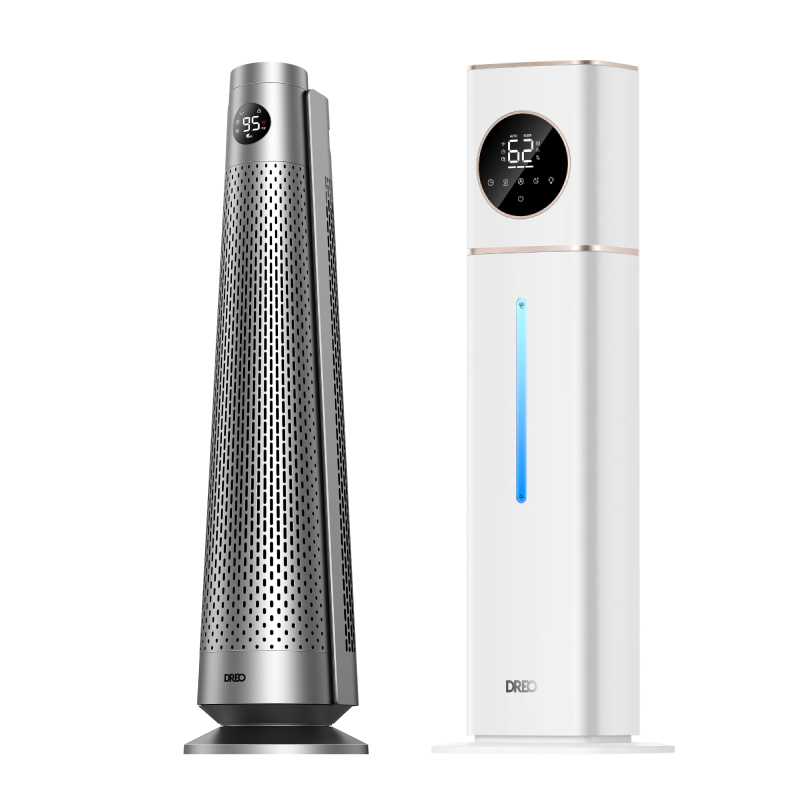
DREO Tower Fan Review & Manual: How to Use DREO Oscillating Tower Fan
Beat the heat in style! Discover how DREO tower fans keep you cool—from smart controls to whisper-quiet sleep mode. Which one fits your space best?


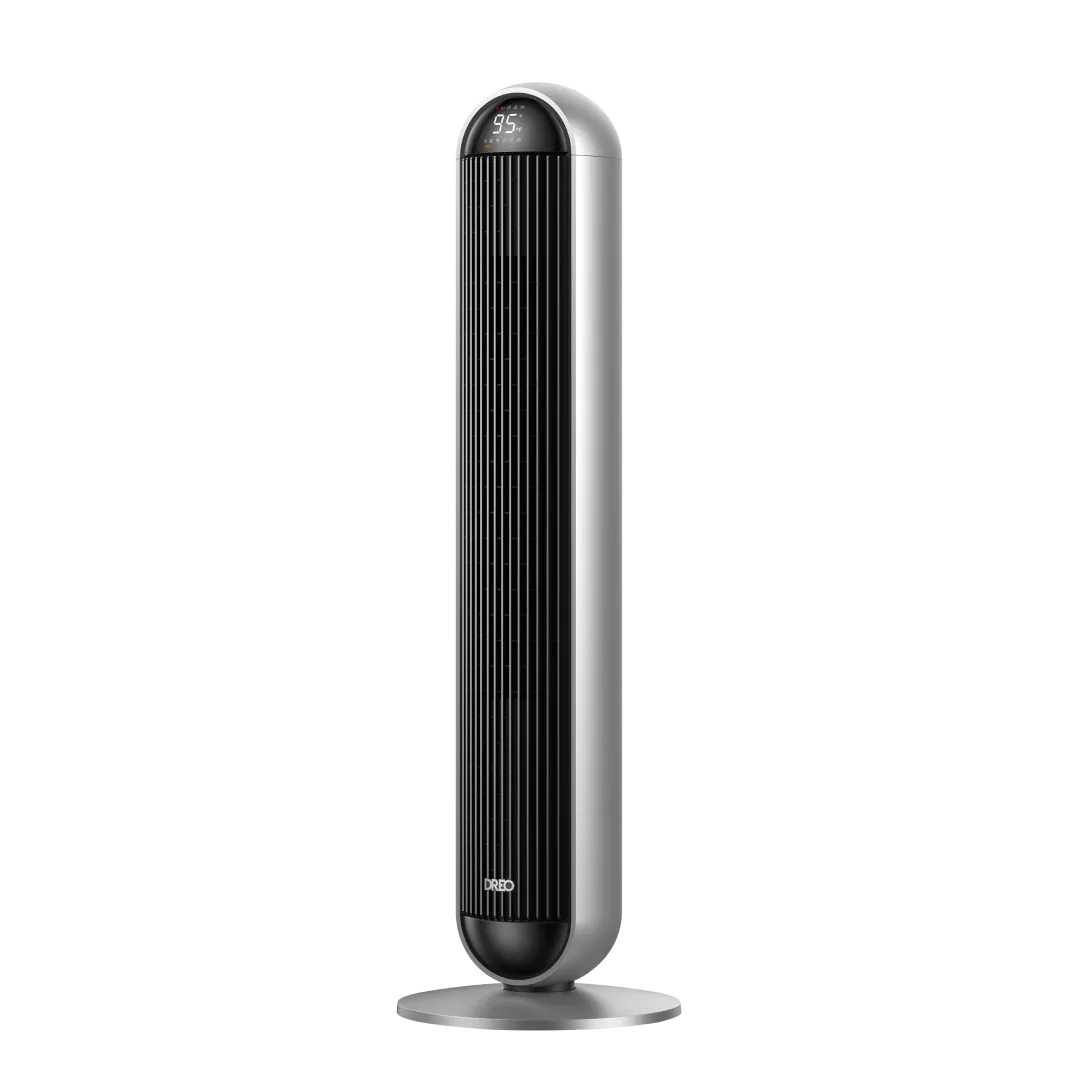
Staying cool during the summer is easy with the right fan, and DREO Tower Fans are designed to provide quiet, efficient, and customizable cooling for any space. Each model brings something unique to the table, whether it's advanced app control, quiet operation, or powerful airflow. Here's a complete guide on how to use the DREO Tower Fans, so you can get the most out of your fan and stay comfortable all year round.

The Basics: Understanding Mode Settings
Whether you're working, sleeping, or just unwinding, every room calls for a different kind of breeze. DREO tower fans offer 4 core modes: Normal, Natural, Sleep, and Auto, giving you the flexibility to adjust to whatever your day brings.
How to Use the Modes:
- Normal Mode: Ideal for those busy work-from-home days when you need consistent airflow without distraction. It's the perfect middle-ground for a refreshing breeze while keeping you focused on your tasks.
- Natural Mode: For those moments when you want a bit more nature in your life, like when you're curling up with a good book and need a gentle, variable breeze that mimics real wind.
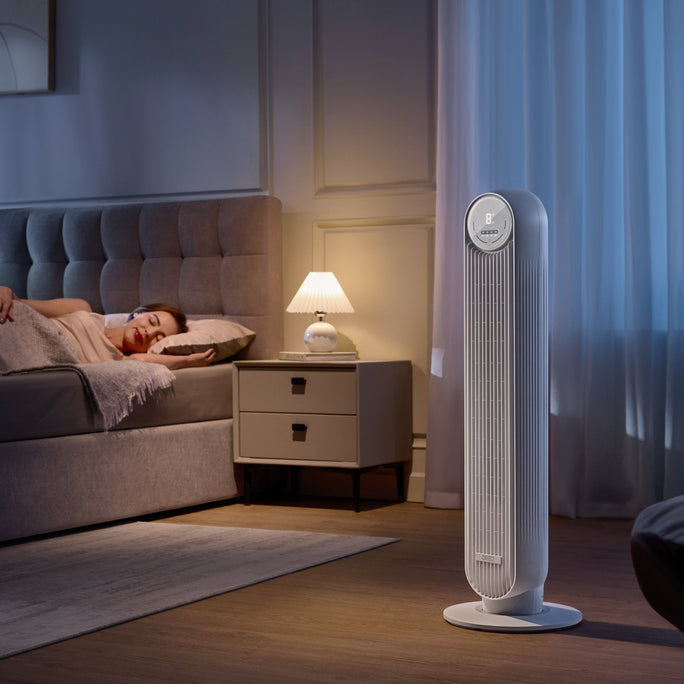
- Sleep Mode: It's late, and you're winding down, but the room's still too warm. Sleep Mode quietly reduces the speed, giving you the cool relief you need while ensuring a peaceful night's sleep. Plus, with some models, the fan gets so quiet (as low as 25dB), you won't even realize it's running.
- Auto Mode: Perhaps the easiest one — just set the fan and let it adjust to the room temperature. Whether you're working from home or just lounging on the couch, Auto Mode keeps things balanced without you having to mess with the controls.

DREO Tower Fan Cruiser Pro T3: Silent Comfort for Small Rooms
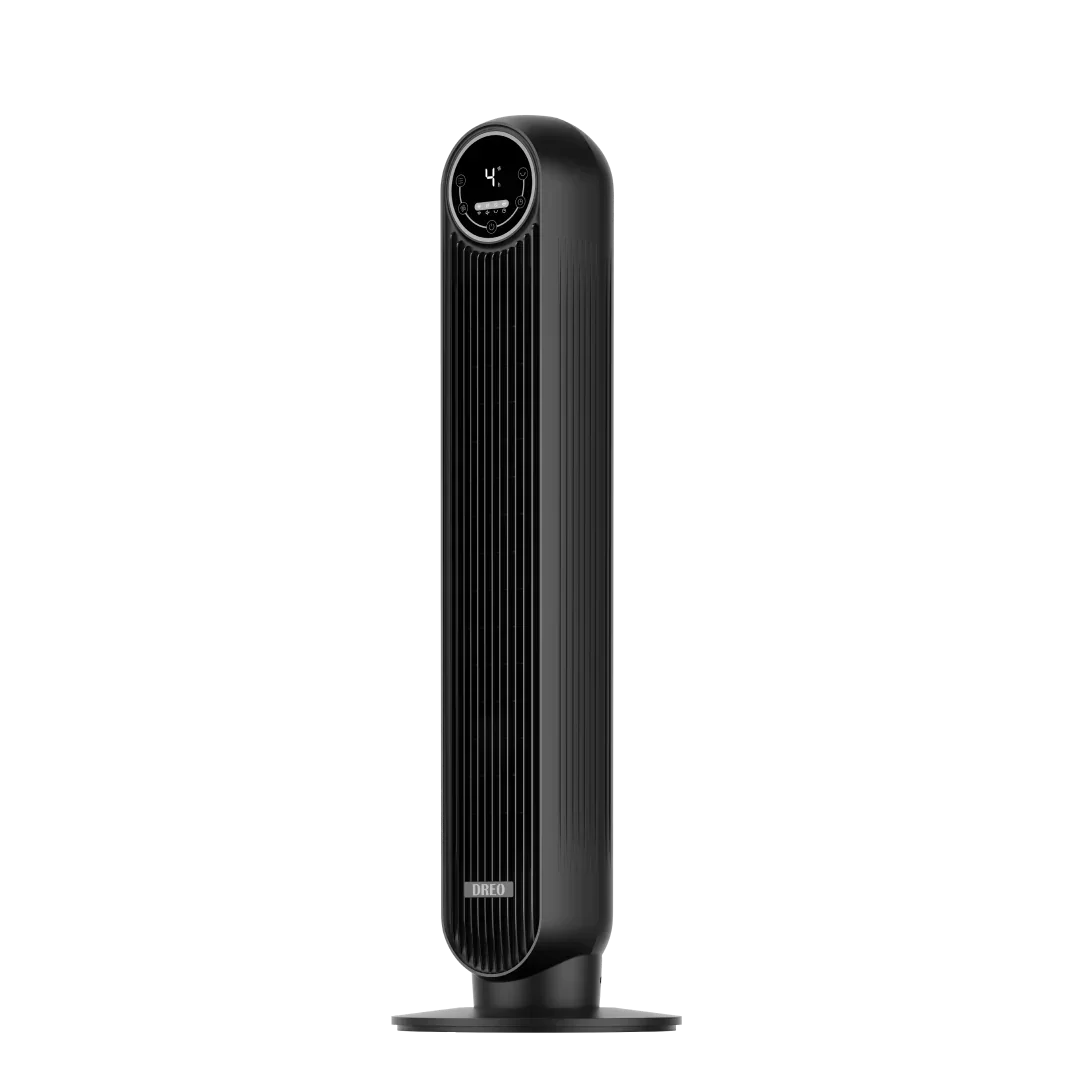
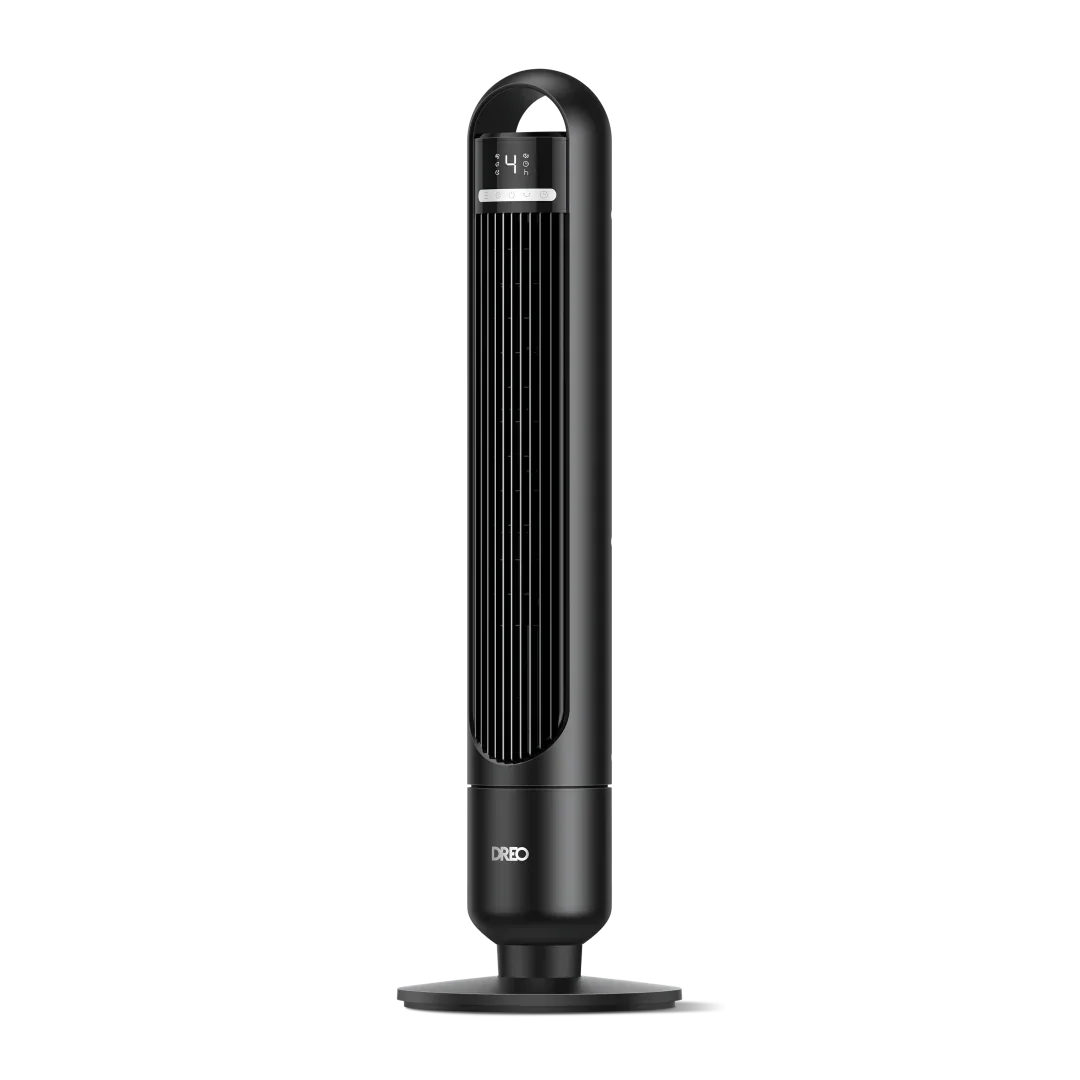
The DREO Tower Fan 508 is built to keep things cool without any noise. It's perfect for smaller spaces like bedrooms or offices, where a quiet fan is essential.
How to Get the Most Out of It:
- You're winding down for bed, but it's still a bit warm. Set it to Sleep Mode, and you'll feel the breeze cooling you down without it being loud. Seriously, it's like a whisper at 28dB, so it won't disrupt your sleep.
- If you're working at your desk and need a steady, cool breeze, set it to Normal Mode at low speed. The gentle airflow keeps you cool without getting in the way.
- Place it in the middle of the room, and the 90° oscillation will help spread the cool air evenly. No more sitting in a corner feeling like you're roasting.
Pro Tip: Set the timer if you don't want the fan running all night. You can set it for anywhere between 1-12 hours, and it will turn off automatically, saving you from having to get up.
DREO Tower Fan Nomad One: The Portable Power Fan
The DREO Tower Fan 307 is the fan to take on the go. Whether you need cooling in the kitchen, living room, or office, this fan is made for portability and power.
How to Get the Most Out of It:
- Begin your day in the living room with a steady breeze from Normal Mode. The medium speed will keep the airflow consistent as you drink your morning coffee or catch up on work.
- If you're heading to the bedroom in the evening, grab the fan by its hidden handle and move it to your bedside. Set it to Sleep Mode for a quieter experience while you sleep, so you can get some much-needed rest without the sound of a loud fan.
- The oscillation (90°) will help distribute the air evenly across the room, especially useful in smaller spaces where you want the cool air to spread out.

DREO Pilot Max S: Smart Cooling with Advanced Features
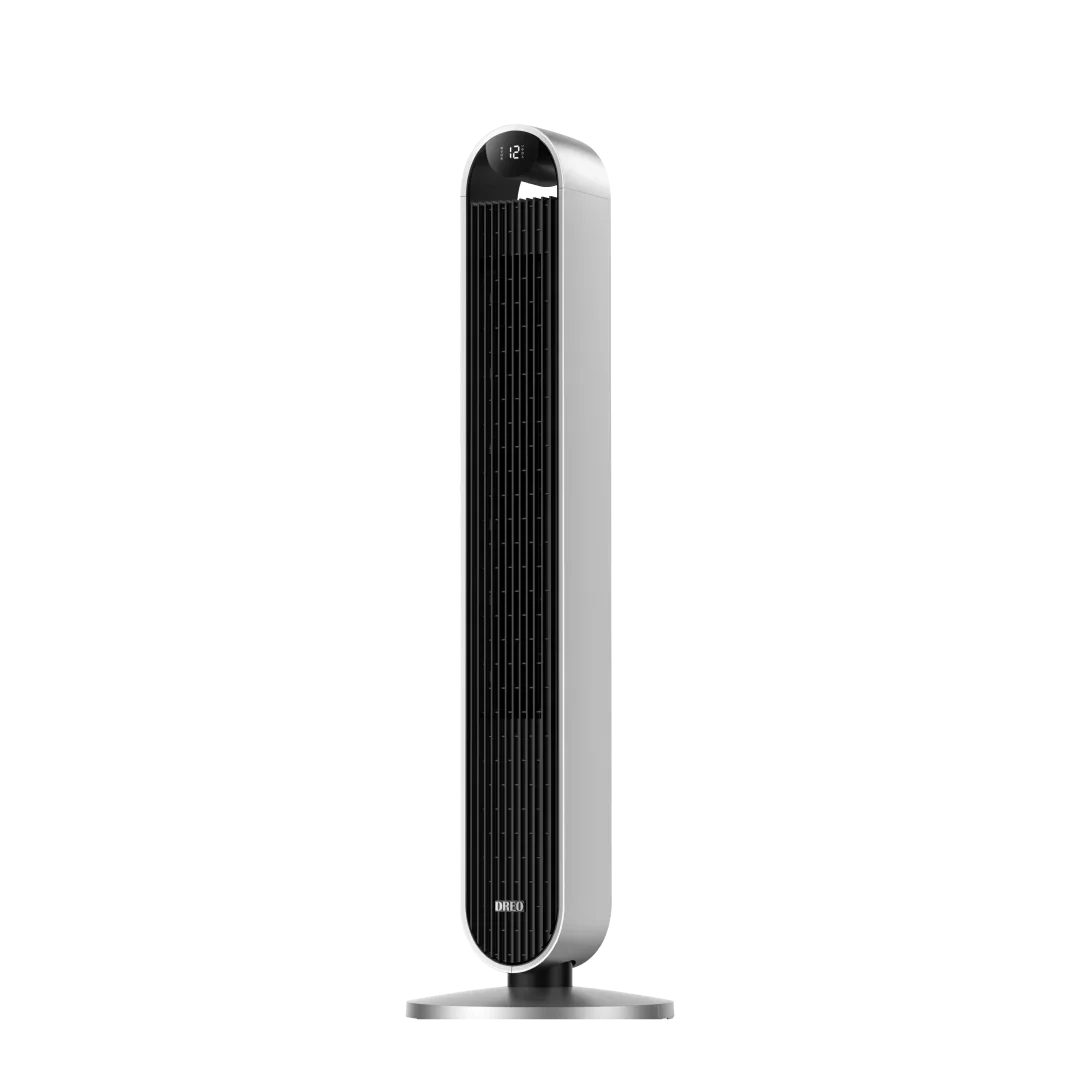
If you want to take control from anywhere, the DREO Pilot Max S is your smart fan. Whether you're in the office or on the couch, you can adjust the fan settings right from your phone.
How to Get the Most Out of It:
- On your way home from work? Open the DREO app and adjust the speed before you even walk in the door. By the time you get there, your room will already be perfectly cool.
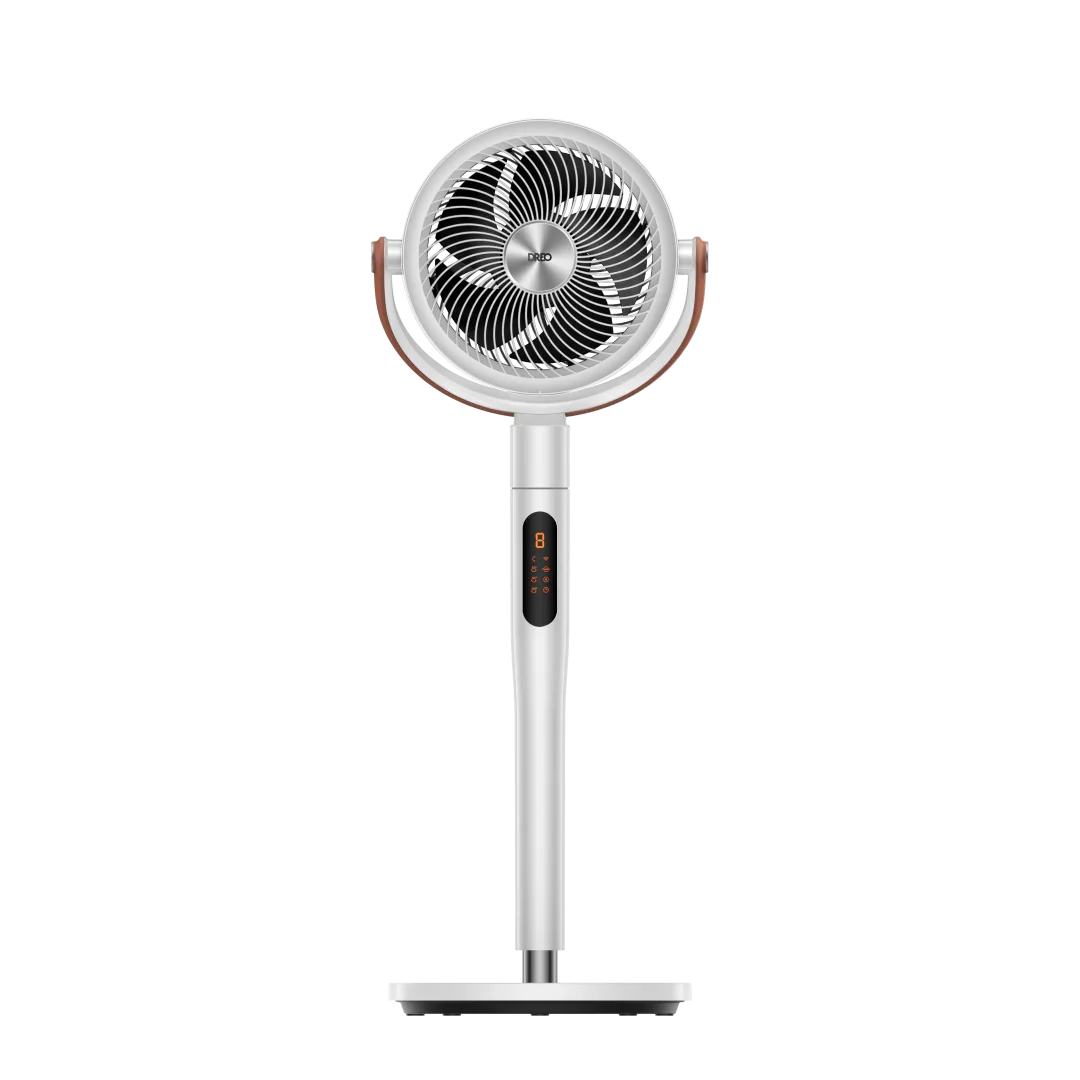
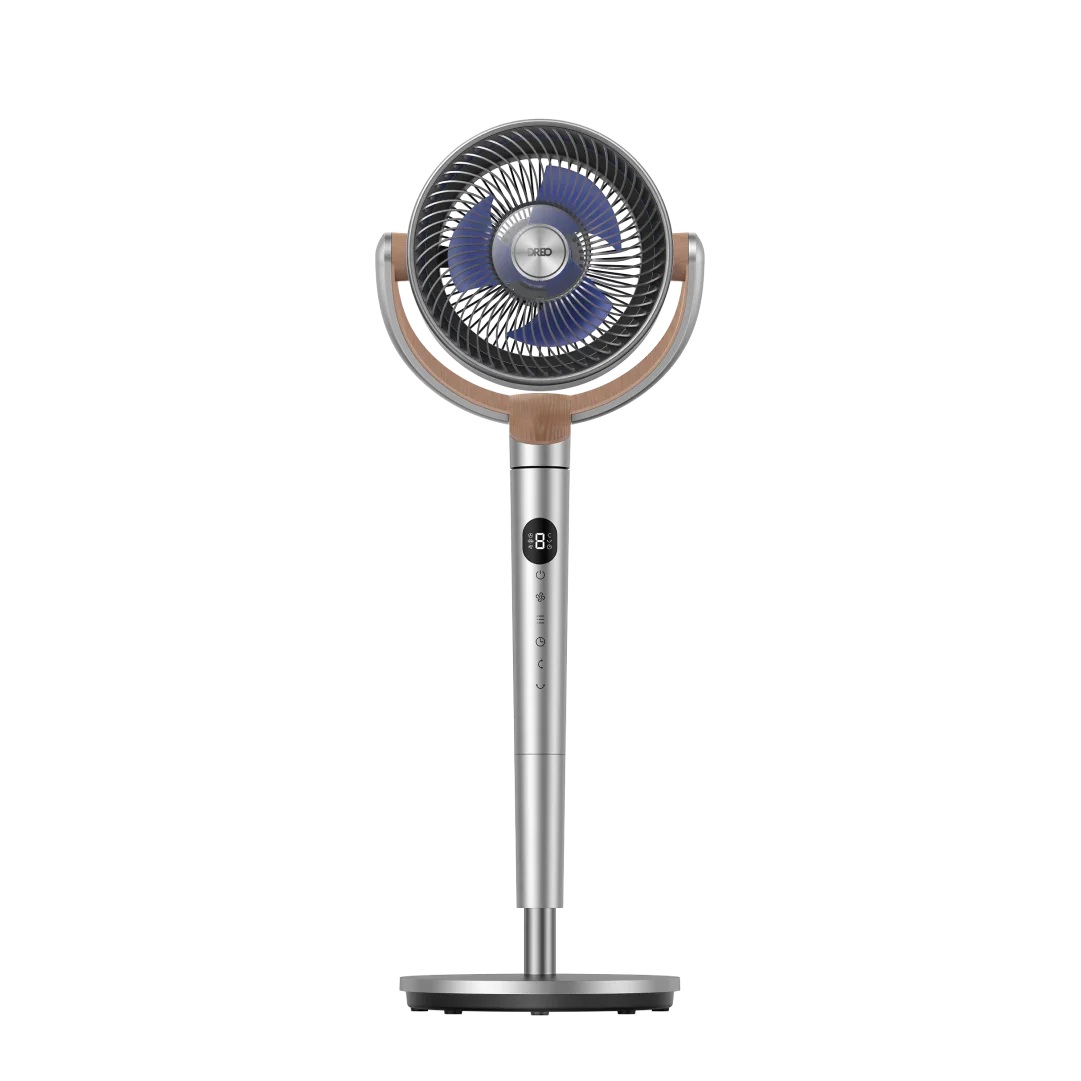
- Use the oscillation settings to direct airflow exactly where you want it — 30°, 60°, 90°, or even 120°. Perfect for focusing the breeze on your side of the couch or spreading it out evenly for a group.
- The 12 speeds (via the app) let you pick the perfect airflow. Low speed for a gentle breeze while reading, high speed for fast cooling when you walk in from a hot day.
Pro Tip: Use Sleep Mode, which operates at a mere 25dB during the night. It will slow the fan down and ensure a quiet, relaxing atmosphere, perfect for sleeping. Plus, you can control everything through your phone, even if you're already in bed.

DREO Tower Fan 519: High-Speed Cooling for Larger Spaces
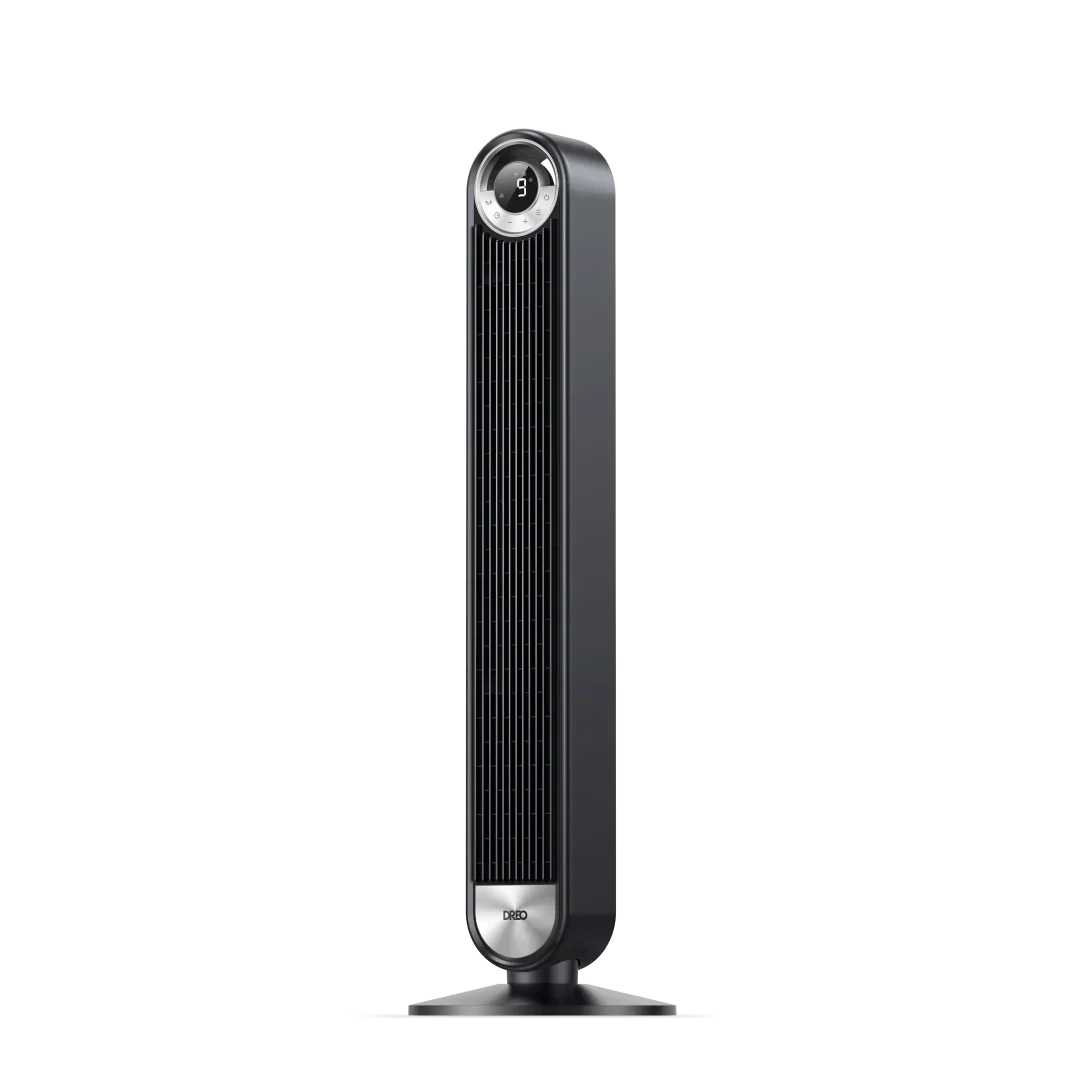
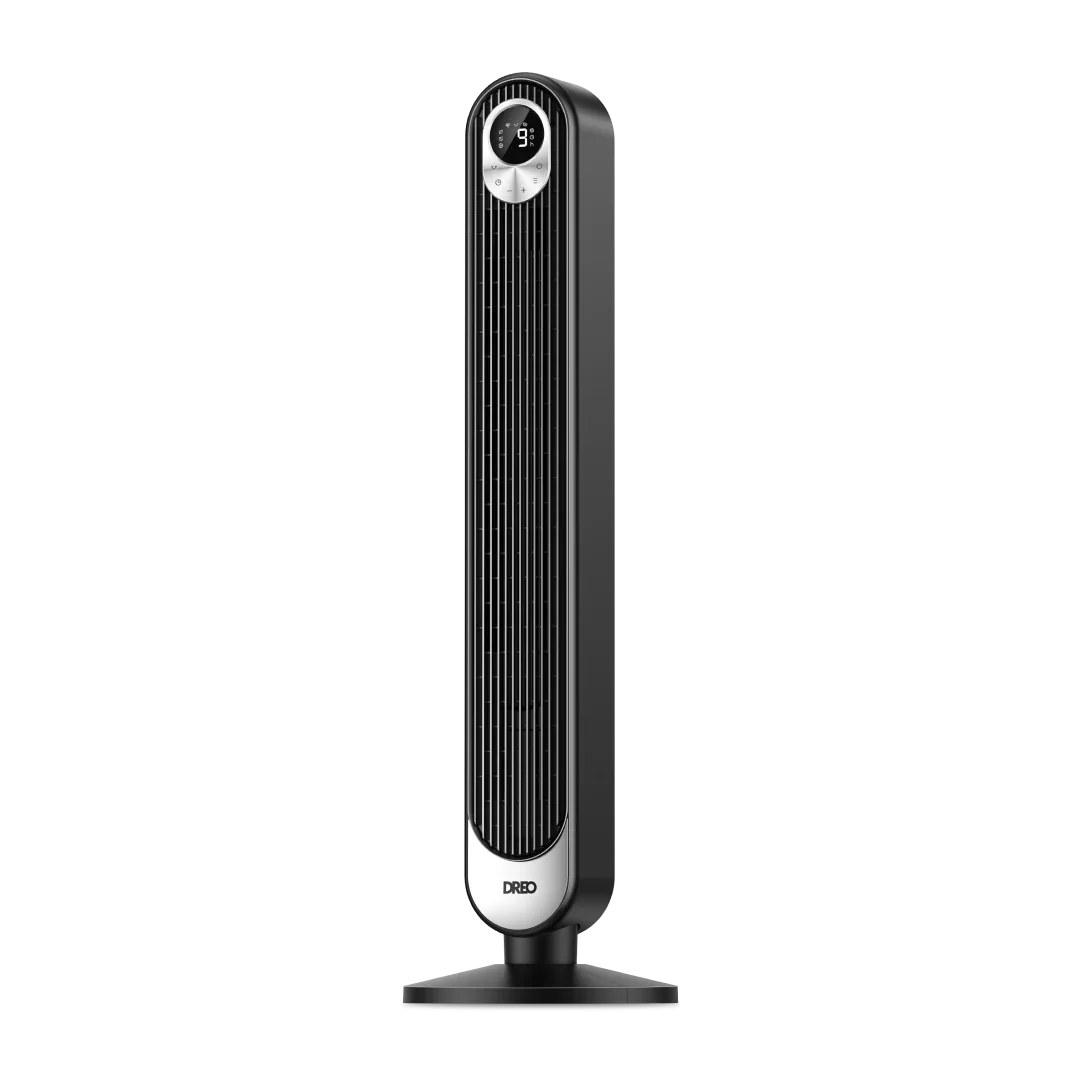
The DREO Tower Fan 519 is built for big rooms or areas with high ceilings. With a 28ft/s airflow speed, this fan can cover more ground and cool down larger spaces faster.
How to Make the Most of it:
- If you're in a large living room, set the fan to high speed for immediate cooling. The 9-speed settings allow you to adjust the airflow based on how much cooling you need. At high speed, it's perfect for quickly lowering the room temperature.
- Oscillation (90°) will help distribute that powerful breeze evenly throughout the room. If you have an open-plan space, use the fan to spread the air in every direction for consistent cooling.
- Auto Mode is perfect for larger spaces because it will monitor the room's temperature and adjust the fan speed accordingly. When you're hosting a gathering, this takes the guesswork out of cooling.
Final Takeaway
With a DREO Tower Fan, you're not just cooling your space — you're creating the ideal environment for productivity, relaxation, and rest. From quiet operation for uninterrupted sleep to powerful airflow that tackles even the largest rooms, they bring customized comfort to any corner of your home.